Taming the Downloads Folder After a Music Haul
You know the scene. One evening you decide to grab a handful of tracks, and a week later your Downloads folder holds ninety-seven files with names like audio_final_2.mp3, track(14).mp3, and download.mp3. Nothing is broken, exactly, but finding the song you actually want has become a small research project. The fix is not more software. It is a few simple habits applied right after each haul.
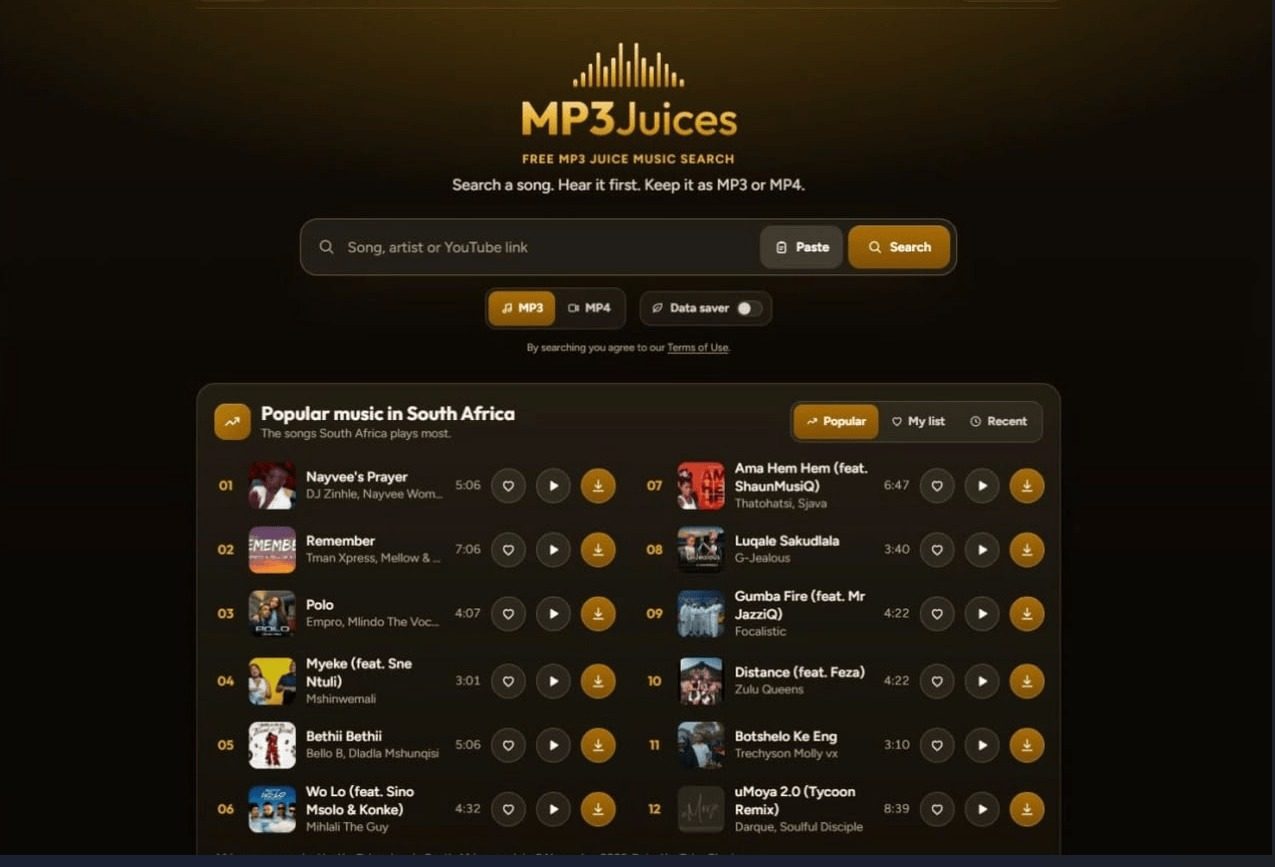
This guide is about the part of music downloading nobody talks about: where the files land, what they are called, and how to build a folder structure that still works when the collection triples. If you use a free search-and-download site such as mp3juices.art to preview songs and save them as MP3 or MP4, the organizational decisions start the moment the download finishes.
Why the Downloads Folder Turns Into a Junk Drawer
The Downloads folder is the default landing zone for almost every browser, and that is the root of the problem. It is designed as a temporary inbox, not a library. Every download from every source — invoices, images, installers, music — competes for the same space, and the operating system rarely prompts you to choose a destination.
Music makes this worse for three reasons. First, hauls happen in batches, so dozens of files arrive in one sitting. Second, filenames are often generated from page titles or random strings, which tells you nothing about the artist. Third, audio files all look alike in a list, so scanning by icon or size is useless.
The result is a folder where you scroll rather than search. The good news is that the damage is reversible, and preventing the next wave is easier than cleaning up after it. The Downloads folder should be a waiting room, not a home.
Find Out Where Your Files Actually Land
Before renaming anything, confirm the real destination. Browsers let you set a default download location, and many people have changed it once and forgotten. In Chrome, Edge, and Firefox the setting lives under Downloads in the browser preferences; Safari keeps it under General. Check it now, because moving files is pointless if the next haul goes back to the old spot.
The three common destination patterns
- Browser default: everything lands in the system Downloads folder, mixed with non-music files.
- Custom single folder: all downloads go to one named folder such as Music/Inbox. Better, but still flat.
- Ask every time: the browser prompts for a location per file. Precise, but slow during a batch haul.
For music, the custom single folder is usually the best compromise. Point the browser at a folder called something like Music/Inbox, let a haul accumulate there, then sort it in one sitting. On phones the logic is similar: Android devices typically save to a Downloads directory, while iPhone users often find files in the Files app under Downloads. Knowing the path matters because mobile file managers hide it behind a couple of taps.
One practical note: if you are downloading MP4 videos rather than audio, keep them in a separate folder from the start. Video files are larger, behave differently in players, and will clutter an audio library fast.
Naming Conventions That Survive a Thousand Files
A filename is the only metadata you can see without opening a file, so it deserves ten seconds of attention. The goal is a name that sorts sensibly and tells you what the track is at a glance. A reliable pattern is Artist – Title (Year), optionally followed by a version tag such as (Live) or (Remix).
Why that order? Because alphabetical sorting then groups everything by artist, which is how most people mentally organize music. Leading with the track title scatters an artist’s work across the folder. Leading with a number only makes sense if you are building a deliberate playlist sequence, and even then the number belongs at the front so it sorts correctly.
Characters to avoid
Some characters cause trouble across operating systems and players: forward slashes, backslashes, colons, question marks, asterisks, quotation marks, and angle brackets. Replace them with a hyphen or simply drop them. Avoid trailing spaces and periods, and keep names under roughly 120 characters so they do not get truncated when synced to a phone or car stereo.
For files that arrive with meaningless names, resist the urge to rename by guessing from memory later. Rename while the track is still fresh, or better, listen to the first few seconds before saving. Platforms built around previewing, like mp3juices.art, let you confirm a song is the right version before it ever reaches your disk, which prevents a folder full of mystery files.
If a haul includes several versions of the same song, make the difference explicit in the name. Artist – Title (Acoustic) and Artist – Title (Radio Edit) will never be confused; two files both called Artist – Title will be, and one will silently overwrite the other.
Folder Structures That Scale With Your Collection
A flat folder works for fifty songs and fails at five hundred. The structure below is boring on purpose — boring structures are the ones people actually maintain.
A simple three-level layout
- Library: the top-level music folder, kept separate from Downloads entirely.
- Artist: one folder per artist, named exactly as you write the artist in filenames.
- Album or year: a subfolder per album, or per year if the tracks are singles.
That gives paths like Library/Artist/Album/Track.mp3, which every music player on the planet understands. If you prefer genre-first organization, that works too, but pick one scheme and stick to it. Mixing genre-first and artist-first halfway through a collection creates the worst of both worlds.
| Structure | Best for | Main weakness |
|---|---|---|
| Flat folder | Under ~50 files | Unusable at scale |
| Artist / Album | Most personal libraries | Weak for compilations |
| Genre / Artist | Listeners who browse by mood | Genres blur at the edges |
| Year / Month | Archiving hauls chronologically | Hard to find a specific artist |
Two supporting folders earn their place in almost every setup. An Inbox folder holds unsorted downloads until you process them, and a Duplicates folder gives you somewhere to park suspected repeats before deleting. Keeping the Inbox separate means a messy haul never contaminates the tidy library.
Compilations and soundtracks are the classic edge case. Rather than scattering tracks across many artist folders, give the compilation its own folder under a Various Artists or Compilations parent. Players handle this convention well, and it keeps albums intact.
A Short Checklist for Every Music Haul
Organization fails when it depends on motivation. A fixed routine takes about two minutes per haul and saves hours later. Run through these steps each time you save a batch of songs.
- Confirm the browser’s download location before starting, so nothing lands in the wrong place.
- Preview each track before downloading, and skip anything that turns out to be the wrong version.
- Rename files immediately using Artist – Title (Year), stripping illegal characters.
- Move finished files out of Downloads and into the library structure the same day.
- Check for duplicates before deleting anything, and park uncertain files in a Duplicates folder.
- Back up the library folder periodically — a sorted collection is easier to back up and far more painful to lose.
None of this requires special tools, and none of it depends on which download service you use. The habit is what matters: treat Downloads as a loading dock, give every file a name that means something, and let a simple three-level structure absorb the growth. Do that, and the next music haul adds to a library instead of another junk drawer.